Defining and Coding Variables in PSPP (SPSS): From Questionnaire to Data
Build a codebook, name variables safely and set Type, Label, Value Labels, Missing Values and Measure in PSPP and SPSS, by menu or syntax


Key takeaways
Build the codebook before data entry: variable name, question wording, codes, missing-value code and level of measurement.
A multiple-choice question needs one 0/1 variable per option; each Likert item is one variable, coded so that a higher number means stronger agreement.
Thirteen reserved keywords, such as GT, BY and TO, cannot be variable names; a gender variable named GT stopped PSPP with a syntax error.
A missing-value code works only when it is declared: 12 undeclared 99s raised the mean age from 31.63 to 34.33 and the standard deviation by more than 60%.
VARIABLE LABELS, VALUE LABELS, MISSING VALUES and VARIABLE LEVEL define all properties in a few lines of syntax that run in both PSPP and SPSS.
Before you run any analysis, every question in the questionnaire has to become one or more variables in the software, each with a clear name, label, codes and level of measurement. This step sounds simple, but a mistake here follows you through the whole analysis: an undeclared missing-value code can distort a mean, and a badly chosen variable name can make a syntax command fail with an error message that is hard to understand.
This post covers three tasks: building a codebook, naming variables correctly and defining variable properties in Variable View or with syntax. The examples use the sample data set on repurchase intention on Marketplace X, and every screenshot is a real screenshot of PSPP. The steps in SPSS are the same.
Sample data and scripts. The data files and scripts for this post are in the research-data-analysis repository on GitHub (folder
data/andscripts/). Download the whole repository with Code > Download ZIP.
About the screenshots. Figures 2 to 6 are real screenshots of PSPP 2.1.2 (Free Software Foundation, 2026) on macOS (Apple silicon Mac), taken in November 2026 with the English data file
marketplace_x_raw.sav(in thedata/folder of the repository). Figures 2 to 4 show only the dialog; in PSPP each dialog opens over the Data Editor window.
1. Build a codebook before you enter data
A codebook is a document that records how each question becomes a variable: the variable name, the question wording, the codes and the meaning of each code, the code used for missing values and the level of measurement. Pallant (2020) recommends building the codebook before you enter the data, because it forces you to decide how to code each question once and to apply that decision consistently to every questionnaire.
Part of the codebook of the sample data set:
The full codebook of the sample data set is stored in marketplace_x_raw.sav itself: the command DISPLAY DICTIONARY. (Section 5) prints it. In a thesis, the codebook usually goes into an appendix.
2. Code each type of question
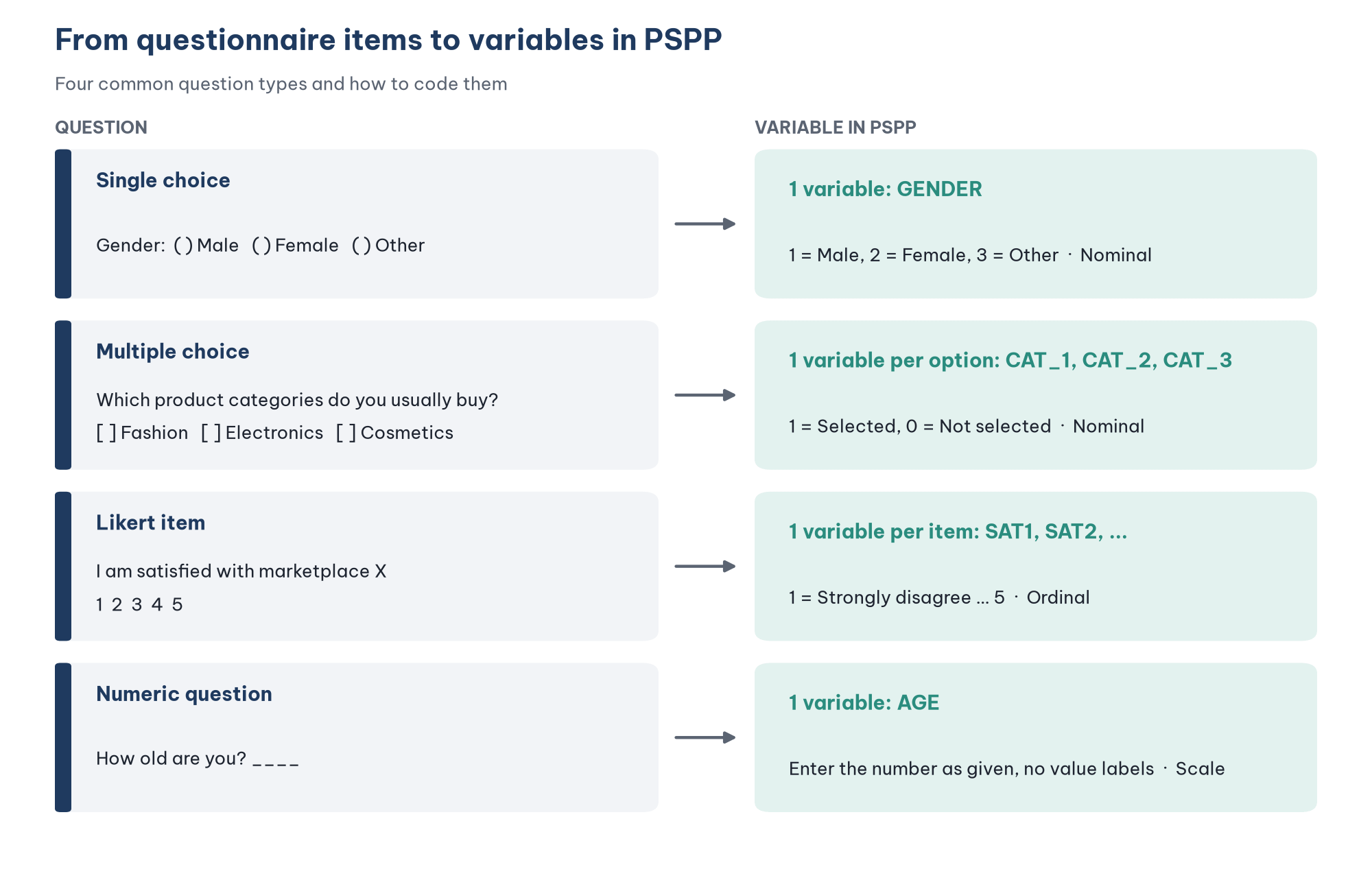
Single-choice question (gender, occupation): one variable, with one code per option. The codes only classify, so the variable is Nominal, or Ordinal if the options are ordered, such as income bands.
Multiple-choice question ("select all the product categories you usually buy"): each option is a separate variable, coded 1 if the respondent selected it and 0 if not. A common mistake is to put all the options into a single variable, which makes it impossible to know everything a respondent selected.
Likert item: one variable per item. Code consistently so that a higher number means stronger agreement, including for reverse-worded items. Enter a reverse-worded item exactly as the respondent answered it, then reverse-code it with the Recode command in Post 10, "Recoding Variables and Computing Composite Scores in PSPP (SPSS)".
Numeric question (age, number of purchases): enter the actual number; do not group the values at data entry. You can always group them later, but you cannot do the reverse (see Post 3, "Levels of Measurement and Likert Scales").
Two general rules for choosing codes:
The missing-value code must lie outside the range of valid values, for example 9 for a 1 to 5 scale and 99 for age. Do not use 0, because 0 can be a valid value (for example "0 purchases").
Be consistent across questions of the same type. If "Yes" is 1 in one question, it is 1 in every other question.
3. Name variables correctly
The variable name is the identifier used in syntax and in other programs such as AMOS, SmartPLS or R. I checked the rules below directly in PSPP 2.0; SPSS applies the same rules.
The 13 reserved keywords that cannot be used as variable names (GNU Project, n.d.) are ALL, AND, BY, EQ, GE, GT, LE, LT, NE, NOT, OR, TO and WITH. They are comparison operators and connecting words in syntax. For example, GT means "greater than". When the sample data set for this series was being prepared, the gender variable was first given the two-letter name GT, and PSPP stopped at the data-entry command with the message "Syntax error expecting identifier". That is why the variable now has a full name. An error like this is very hard to diagnose if you do not know the list above.
Beyond the required rules, three habits help:
Use plain letters without accents. PSPP accepts accented names such as
café_1, but many other programs and older versions do not.Name items by construct plus item number, such as
SAT1toSAT4for the satisfaction scale. This lets you use the keywordTOin syntax:SAT1 TO SAT4means every variable from SAT1 to SAT4 in file order.Put the full wording in the variable label (Label), not in the variable name.
4. Define variable properties in Variable View
Switch to the Variable View tab. Each row is a variable; click a cell to type in it, or double-click a cell to open the dialog for properties that have one.
Type: data type
Double-click the Type cell to open the Variable Type and Format dialog.
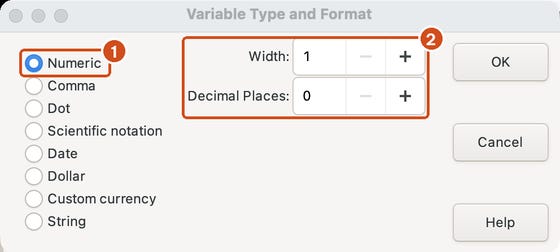
Keep survey variables Numeric, including categorical variables such as gender: enter a code and assign a value label, instead of typing "Male" or "Female". Use String (text) only for open-ended questions, because most analysis procedures do not accept string variables.
Label: variable label
Type the question wording directly into the Label cell. The variable label appears in the analysis dialogs and in the output tables, so the output is much easier to read than with variable names alone.
Value Labels: labels for the codes
Double-click the Value Labels cell to open the dialog. Type the code in the Value box and its meaning in the Value Label box, then click Add. Repeat for each code, and finally click OK.
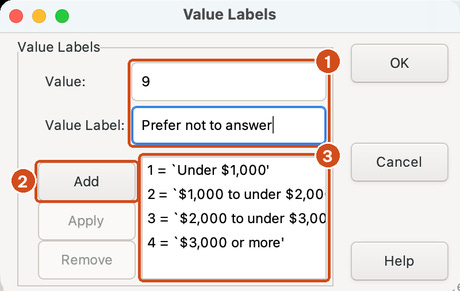
To change an existing label, select it in the list, edit the text and click Apply; to delete it, click Remove.
Missing Values: user-defined missing values
PSPP and SPSS distinguish two kinds of missing values (Field, 2024; GNU Project, n.d.):
System-missing: the cell is empty. The program knows automatically that the value is missing.
User-missing: a code you choose, such as 9 = "Prefer not to answer". The program treats it as missing only if you declare it in the Missing Values column.
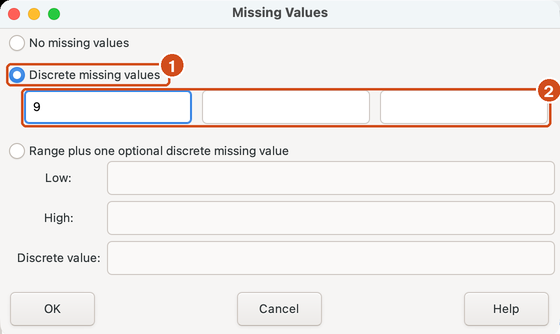
Double-click the Missing Values cell, select Discrete missing values and type the code, for example 9. You can declare up to three separate codes, or a range plus one extra code.
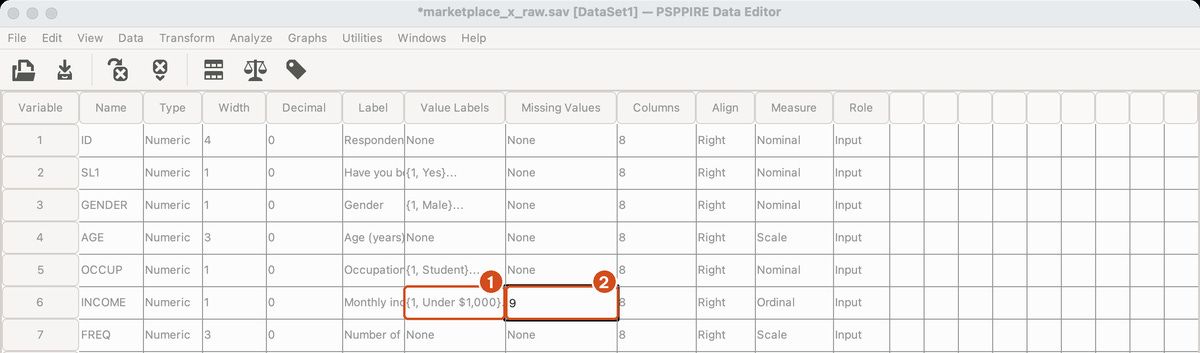
Why does this step matter? I ran an example on the sample data set: suppose 12 respondents chose "Prefer not to say my age", coded 99. The table compares the results before and after declaring 99 as missing (the case with age 230, a data-entry error, is set aside here; Post 8, "Data Cleaning in PSPP (SPSS)" deals with it):
Just 12 cases coded 99 raised the mean age by almost 3 years and the standard deviation by more than 60%. The income variable shows the same problem: before the declaration, the 12 "Prefer not to answer" responses are counted as an income level and make up 4% of the frequency table; after the declaration, they move to a separate Missing row, and the Valid Percent column is recalculated over the 288 respondents who answered. The syntax for both examples is in the repository's scripts/ folder: example_missing_age.sps and example_missing_income.sps.
Measure: level of measurement
Choose Nominal, Ordinal or Scale in the Measure column, following the codebook. How to decide the level of measurement is explained in Post 3. The Columns (display width) and Align columns only change how the data look on screen; they do not affect the analysis.
Check the result in Data View
Go back to Data View and click the Value Labels button on the toolbar (the tag icon), or choose View > Value Labels. The data are now shown as labels instead of codes.
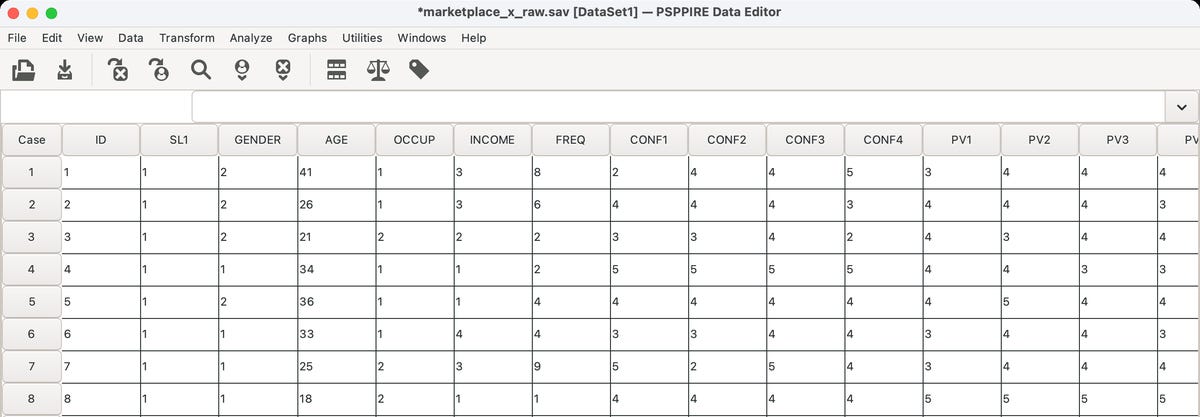
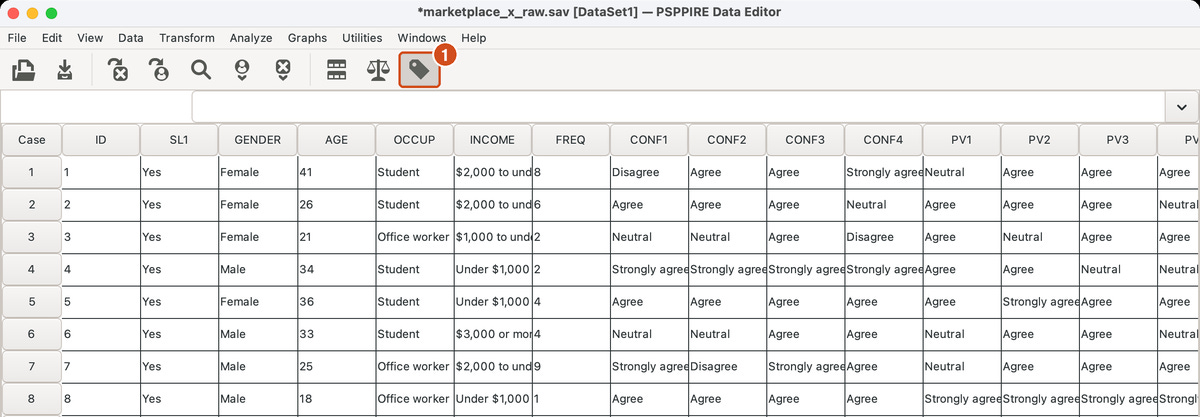
This is a quick way to check the value labels: if one cell still shows a number while the other cells in the column show text, that code most likely has no label or was entered incorrectly.
5. Define variables with syntax
For a questionnaire with dozens of questions, syntax is much faster and less error-prone than clicking cell by cell. The syntax below runs in both PSPP and SPSS:
* Variable labels.
VARIABLE LABELS
  GENDER 'Gender'
  INCOME 'Monthly income'
  SAT1 'I am satisfied with my purchases on marketplace X'.

* Value labels: use TO for adjacent variables with the same labels.
VALUE LABELS
  GENDER 1 'Male' 2 'Female' 3 'Other'
  /INCOME 1 'Under $1,000' 2 '$1,000 to under $2,000'
          3 '$2,000 to under $3,000' 4 '$3,000 or more'
          9 'Prefer not to answer'
  /CONF1 TO RI4 1 'Strongly disagree' 2 'Disagree'
                3 'Neutral' 4 'Agree' 5 'Strongly agree'.

* User-defined missing values.
MISSING VALUES INCOME (9).

* Levels of measurement.
VARIABLE LEVEL
  GENDER OCCUP (NOMINAL)
  /INCOME CONF1 TO RI4 (ORDINAL)
  /AGE FREQ (SCALE).

* Review all definitions.
DISPLAY DICTIONARY.
Two points to keep in mind:
The
VALUE LABELScommand replaces all existing labels of a variable. To add one label and keep the existing ones, useADD VALUE LABELS.The
DISPLAY DICTIONARYcommand prints every property of every variable. Run it after defining the variables for a final check.
The data file marketplace_x_raw.sav in the repository already has all 28 variables defined in this way, so you can open it and compare its Variable View with your own work.
Five common mistakes
Entering data before building the codebook, so the same answer ends up with different codes on different questionnaires.
Putting a multiple-choice question into one variable. Each option must be its own 0/1 variable.
Using a missing-value code without declaring it in Missing Values. As the example above shows, a handful of cases is enough to distort the results.
Giving a variable a reserved keyword as its name, such as
GT,BYorTO, which causes confusing syntax errors.Typing text instead of codes for a categorical variable, which turns it into a String variable that most analyses cannot use.
Frequently asked questions
Should I leave unanswered questions blank or use a special code?
If the only kind of missing answer is "no answer", leaving the cell blank is enough. If you need to distinguish several reasons, for example "prefer not to answer" and "question not applicable", use separate codes such as 8 and 9, and declare both in Missing Values.
How do I enter open-ended (text) answers?
Enter them in a String variable to keep the original wording. If you want to analyze them quantitatively, read the answers, build a set of themes and then create an additional Numeric variable that codes each answer by theme.
Does changing the level in the Measure column change the data?
No. Measure is only descriptive information that helps the program suggest suitable procedures and charts. The values in the cells do not change.
References
Field, A. (2024). Discovering statistics using IBM SPSS Statistics (6th ed.). SAGE Publications.
Free Software Foundation. (2026). GNU PSPP (Version 2.1.2) [Computer software]. https://www.gnu.org/software/pspp/
GNU Project. (n.d.). GNU PSPP manual. Retrieved October 29, 2026, from https://www.gnu.org/software/pspp/manual/
Pallant, J. (2020). SPSS survival manual: A step by step guide to data analysis using IBM SPSS (7th ed.). Routledge.
Discussion about this post