Importing Excel and Google Forms Data into PSPP (SPSS) Without Errors
Get Google Forms and Excel survey data into PSPP and SPSS, turn text answers into codes and fix date, encoding and separator problems


Key takeaways
PSPP cannot read .xlsx files: save Excel data as CSV UTF-8 or ODS, and download Google Forms responses as CSV.
The Import Wizard read a month/day/year timestamp as day/month/year, turning 5 October into 10 May without warning; import timestamps as text.
A syntax file with GET DATA, RECODE and DO REPEAT gives short codebook names and numeric codes, and a CODE_ERRORS check catches spelling mismatches.
Never use AUTORECODE for Likert items: it codes answers alphabetically, so "Disagree" gets a higher code than "Agree".
Plain CSV garbles accented letters, and some regional settings produce semicolon-separated files; declare the encoding or separator, then check counts, ranges and types.
Most surveys today are collected with Google Forms, and data from paper questionnaires is usually typed into Excel. Both have to be brought into a statistics program before any analysis, and this is where many people meet their first errors: dates that change meaning, accented letters that turn into strange symbols, all the data squeezed into a single column or answers that are still the words "Agree" instead of the number 4.
This post covers two routes into PSPP: from Google Forms (text answers that must be turned into numeric codes) and from Excel (data already coded as numbers). The sample files for this post let you reproduce each problem yourself, so you recognize it at once when you meet it. The example continues the survey on repurchase intention on Marketplace X from the previous posts, using the first 40 respondents of the sample data set.
Sample data and scripts. The data files and scripts for this post are in the research-data-analysis repository on GitHub (folder
data/andscripts/). Download the whole repository with Code > Download ZIP.
About the screenshots. Figures 2 to 8b are real screenshots of PSPP 2.1.2 (Free Software Foundation, 2026) on macOS (Apple silicon Mac), taken in November 2026 with the sample files in the
data/folder of the repository (copied to the folder~/Documents/MarketplaceXon the computer used for the screenshots).
1. Choose your route
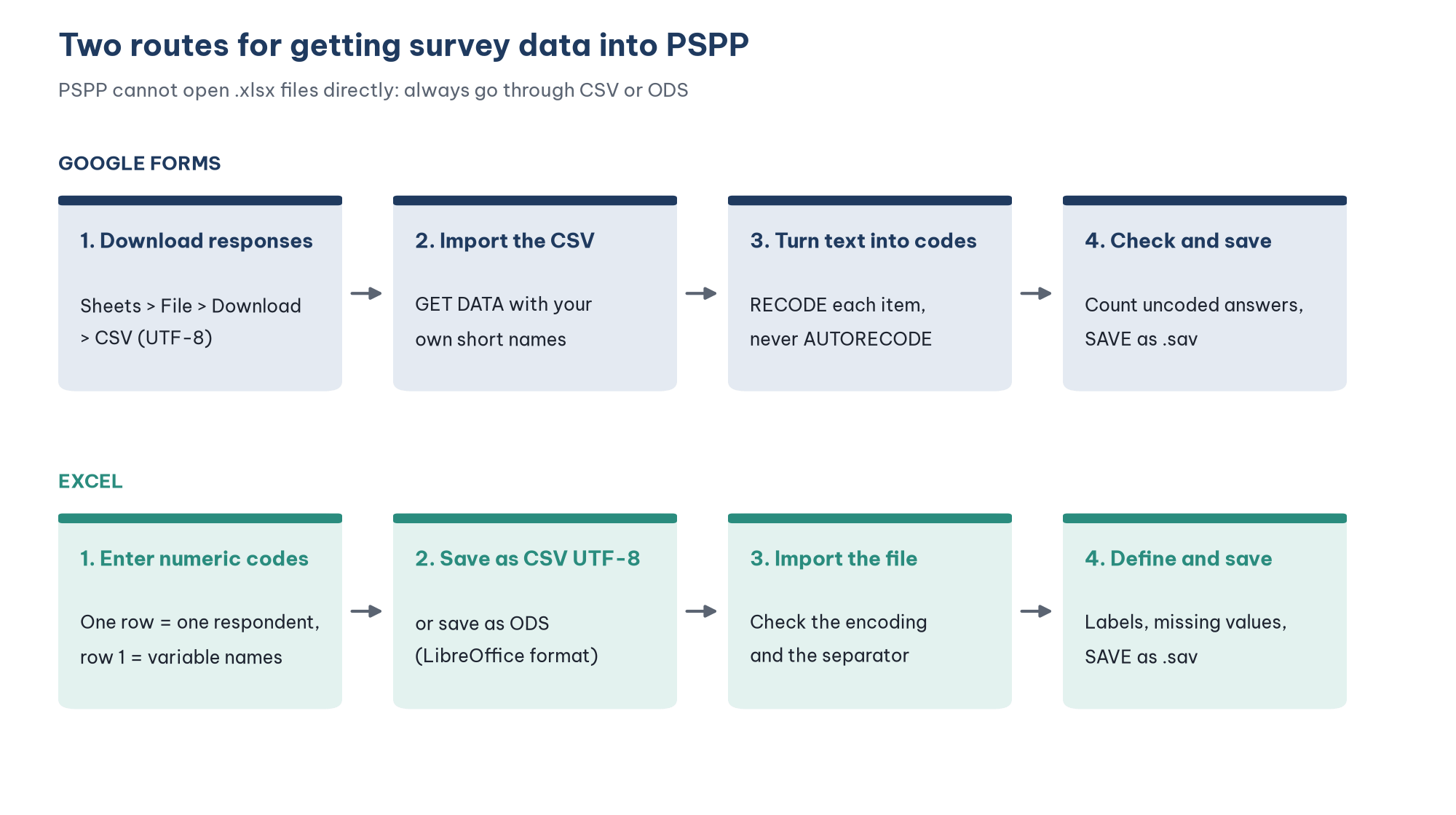
PSPP cannot read .xlsx files directly. The PSPP GET DATA command accepts text files (TXT, CSV), LibreOffice ODS spreadsheets, Gnumeric spreadsheets and PostgreSQL databases (GNU Project, n.d.). Data from Excel must therefore be saved as CSV or ODS first. SPSS can open .xlsx files directly (File > Open > Data), but the problems with variable names, text answers and character encoding described in this post happen in exactly the same way when you go through CSV.
Before you import anything, make sure you have a codebook, as described in Post 6, "Defining and Coding Variables in PSPP (SPSS)". The codebook tells you which number the answer "Agree" must become, what each variable is called and how missing values are recorded.
2. Import data from Google Forms
Download the responses as CSV
According to Google (n.d.), there are two ways to get all the responses:
Download directly: open the form, select the Responses tab, click More (the three dots) and choose Download responses (.csv). Google downloads a zip file that contains the CSV file.
Through Google Sheets: on the Responses tab, click Link to Sheets. In the new spreadsheet, choose File > Download > Comma-separated values (.csv).
Both ways give a CSV file encoded in UTF-8, so accented and non-Latin characters are kept, as long as you declare the right encoding when you import the file. The second way is more convenient while the survey is still running, because the spreadsheet updates itself with new responses.
Three features of a Google Forms file you must deal with
Open the file google_forms_responses.csv from the repository's data/ folder, and you will see that it is far from an analysis-ready data file:
The "Timestamp" column (when the form was submitted) is also there, as the first column. Keep it: it helps you find responses that were completed too quickly, or submitted twice, when you clean the data (Post 8, "Data Cleaning in PSPP (SPSS)"). Note how it is written: the sample file uses month/day/year, the format a US Google account uses, so 10/05/2026 08:12:00 means 5 October 2026. This detail matters in Step 5 below.
Import with the Import Wizard
The Import Wizard is the most visual way to see how the file looks in PSPP. Choose File > Import Data, then go through the five steps:
Step 1. Select the file and the encoding. Select the CSV file (1). In the Character Encoding box (2), the default Automatically Detect usually works for the UTF-8 files that Google produces. If accented characters look wrong in a later step, come back here and choose Unicode (UTF-8).
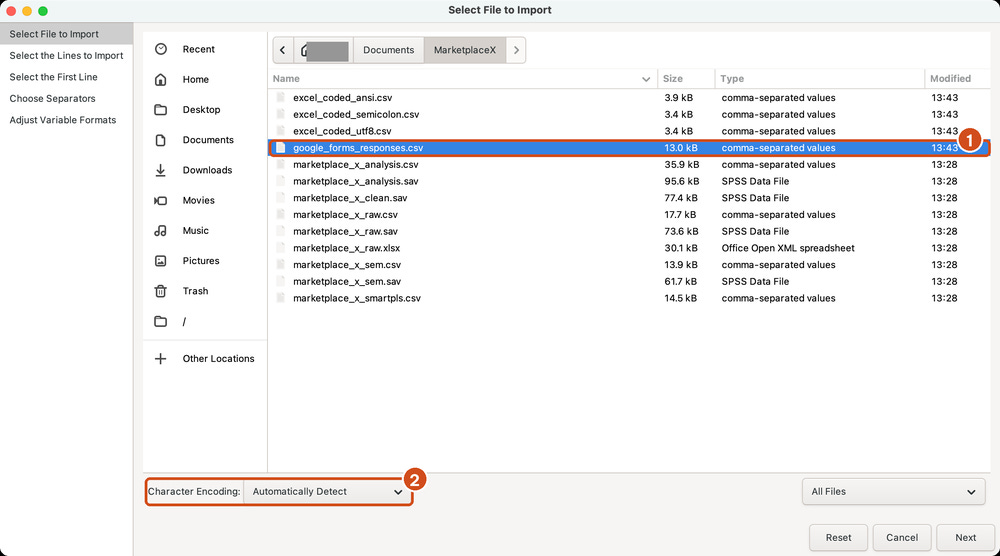
Step 2. Choose how many responses to import. PSPP reports that the file contains 41 lines of text (1 header line and 40 responses). Keep All cases to import everything.

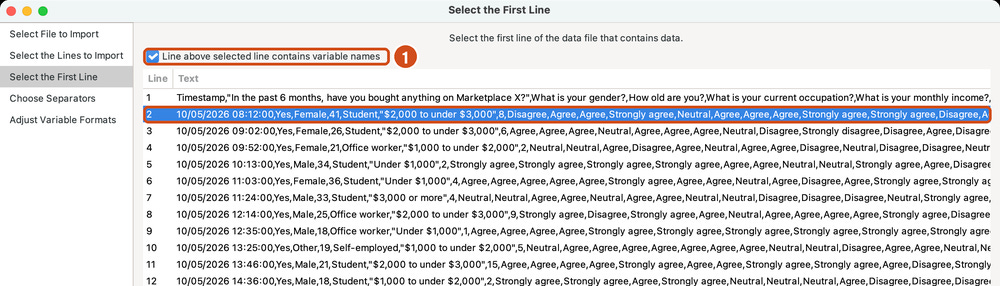
Step 3. Select the first line of data. Check Line above selected line contains variable names (1), then click line 2, the first response (the highlighted line). If you only check the box without clicking the line, the preview in the next step is empty.
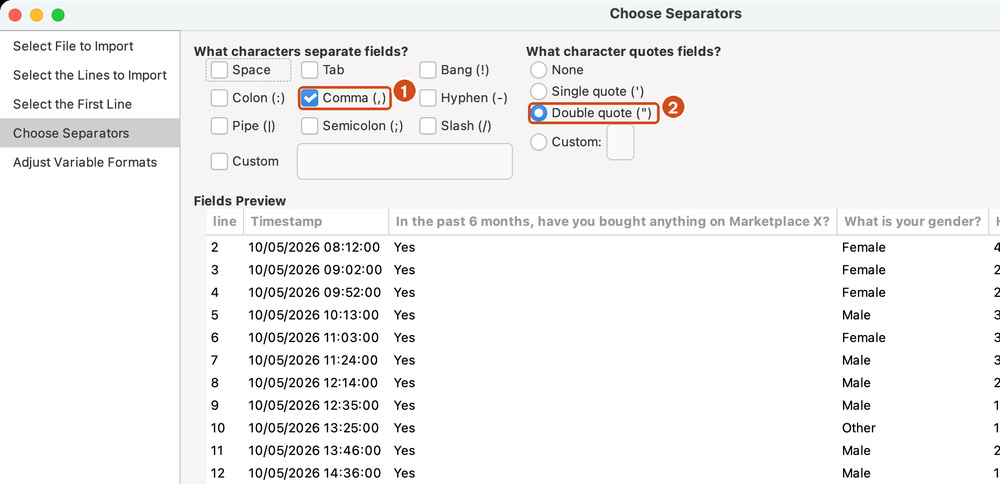
Step 4. Choose the separators. A Google Forms file uses commas (Comma, 1) to separate the columns and double quotes (Double quote, 2) around any cell that itself contains a comma, such as the question "In the past 6 months, have you bought...". The Fields Preview table below must show each question in its own column.
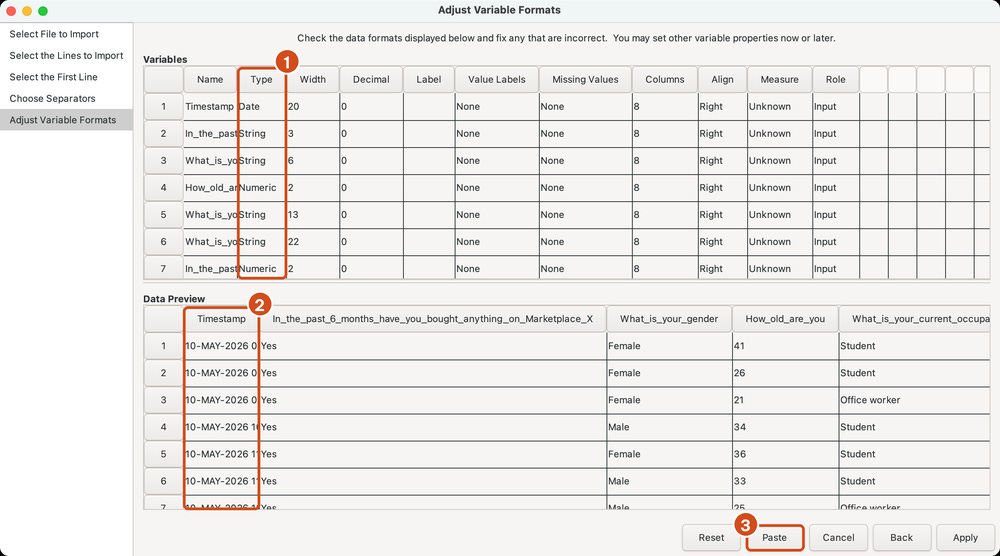
Step 5. Check the variable formats. PSPP guesses the type of each variable (Type column, 1). The text answers are String, and age and number of purchases are Numeric. Look closely at the first variable: PSPP guessed that Timestamp is a Date and shows the first response as 10-MAY-2026 (2). The file says 10/05/2026, which Google meant as 5 October 2026, but PSPP read the first number as the day and the second as the month. No warning appears, because 10/05/2026 is a valid date both ways. Every timestamp in the wizard import is therefore wrong, and a check of completion times or submission dates built on it would be wrong too. Click Paste (3) instead of Apply: PSPP closes the dialog and opens a Syntax window with the matching import command, so you can save it and run it again later.
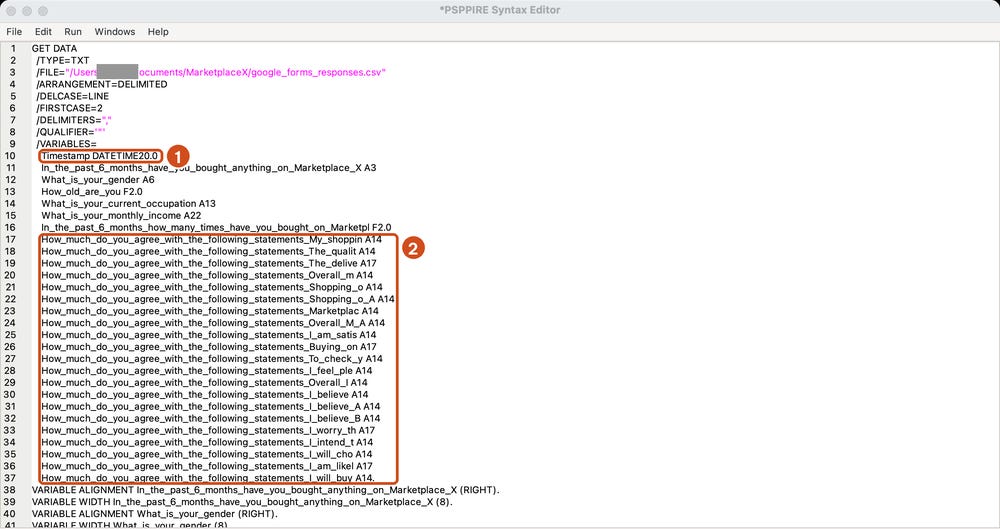
The command pasted by the wizard shows both problems clearly. The timestamp is read with the date-time format DATETIME20.0 (1), and the variable names are taken from the questions. The 21 grid items all start with How_much_do_you_agree_with_the_following_statements_, followed by only the first few letters of the statement; where two shortened names would be the same, PSPP adds _A or _B (for example ..._I_believe, ..._I_believe_A, ..._I_believe_B) (2).
The result in Data View is a data set made of words, with long variable names and timestamps in May (Figure 8a). With this data set, you cannot yet run Cronbach's alpha, EFA or regression.
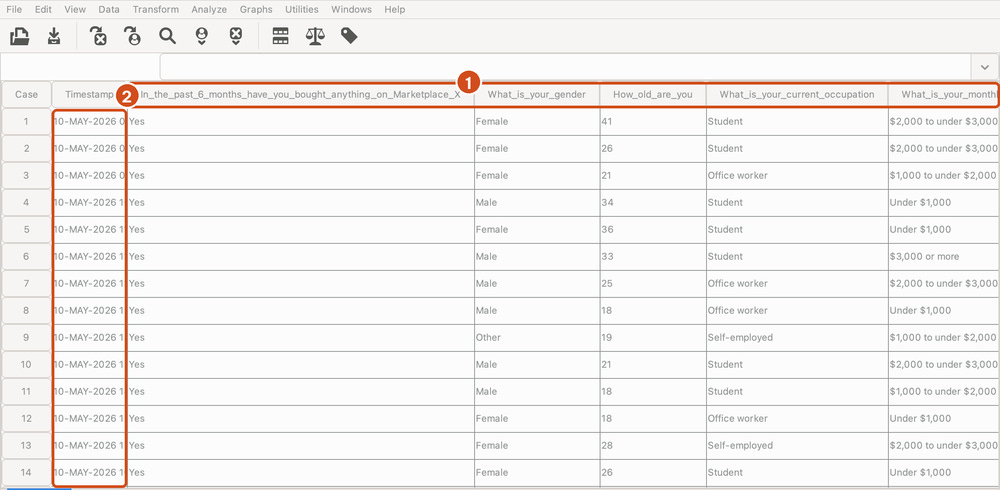
Figure 8a. Data imported with the wizard: long variable names (1), answers still in words and the Timestamp read as 10 May 2026 (2).
You could rename and code each variable by hand in Variable View, but with 28 variables this is slow and error-prone. Syntax is a better way.
Import with syntax and turn words into numbers
The file import_google_forms.sps in the repository's scripts/ folder does three things at once: it imports the file with short variable names that you choose according to the codebook, turns the text answers into numeric codes and checks the result. The first part imports the data:
GET DATA
  /TYPE=TXT
  /FILE='../data/google_forms_responses.csv'
  /ENCODING='UTF-8'
  /ARRANGEMENT=DELIMITED
  /DELCASE=LINE
  /FIRSTCASE=2
  /DELIMITERS=','
  /QUALIFIER='"'
  /VARIABLES=
    TIMESTAMP A19 SL1_S A10 GENDER_S A10 AGE F3.0 OCCUP_S A30 INCOME_S A40 FREQ F3.0
    CONF1_S A30 CONF2_S A30 CONF3_S A30 CONF4_S A30 PV1_S A30 PV2_S A30 PV3_S A30
    PV4_S A30 SAT1_S A30 SAT2_S A30 AC1_S A30 SAT3_S A30 SAT4_S A30 TRU1_S A30
    TRU2_S A30 TRU3_S A30 TRU4_S A30 RI1_S A30 RI2_S A30 RI3_S A30 RI4_S A30.
Three points to note:
FIRSTCASE=2skips the header row. The variable names come from the/VARIABLESlist, in the same order as the columns in the file. So you must check the order of the questions in the form against the codebook before you write this list.Every variable needs a format:
A30is a string of up to 30 characters,F3.0is a number with up to 3 digits. The text answers are imported into temporary variables with the suffix_S(string).The timestamp is imported as the string
A19, so PSPP keeps it exactly as it is written in the file and does not have to guess the order of day and month. This avoids the 10 May problem of the wizard (compare Figures 8a and 8b). If you later need the timestamp as a real date, convert it with the day and month order stated explicitly, and check a few cases against the file.
Next, RECODE ... INTO turns each text answer into a numeric code according to the codebook. Because the 21 Likert items share one rule, the DO REPEAT structure lets you write the command only once:
RECODE GENDER_S ('Male'=1) ('Female'=2) ('Other'=3) INTO GENDER.

DO REPEAT TXT = CONF1_S CONF2_S CONF3_S CONF4_S PV1_S PV2_S PV3_S PV4_S SAT1_S SAT2_S AC1_S
                SAT3_S SAT4_S TRU1_S TRU2_S TRU3_S TRU4_S RI1_S RI2_S RI3_S RI4_S
         /NUM = CONF1 CONF2 CONF3 CONF4 PV1 PV2 PV3 PV4 SAT1 SAT2 AC1
                SAT3 SAT4 TRU1 TRU2 TRU3 TRU4 RI1 RI2 RI3 RI4.
  RECODE TXT ('Strongly disagree'=1) ('Disagree'=2) ('Neutral'=3)
             ('Agree'=4) ('Strongly agree'=5) INTO NUM.
END REPEAT.
EXECUTE.
The text in quotes must match the answer in the file character for character, including capital letters, spaces and accents. Any answer that does not match becomes a missing value, without an error message. That is why the next step is a check:
COUNT NOT_CODED = CONF1 TO RI4 (SYSMIS).
COUNT BLANK = CONF1_S TO RI4_S ('').
COMPUTE CODE_ERRORS = NOT_CODED - BLANK.
FREQUENCIES CODE_ERRORS /STATISTICS=NONE.
NOT_CODED counts the Likert items that are missing after coding, and BLANK counts the items the respondent really left empty. If the two numbers are equal (CODE_ERRORS = 0 for every response), no answer was lost through a spelling mismatch. With the sample file, all 40 responses have CODE_ERRORS = 0.
The last part of the syntax file keeps the numeric variables in questionnaire order with MATCH FILES /KEEP, adds value labels, declares the levels of measurement and saves the file google_forms_coded.sav. The result is an analysis-ready data set with the same codes as the sample data set in Post 6 (Figure 8b).
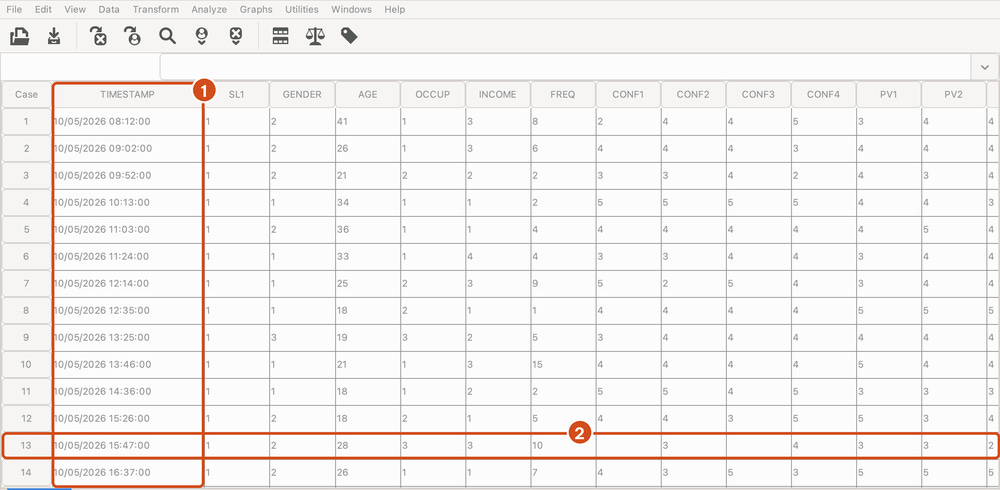
Figure 8b. After running import_google_forms.sps: TIMESTAMP kept as text, exactly as in the file (1), short names from the codebook and numeric codes. The empty cells of case 13 (2) are items the respondent skipped.
Warning: do not use AUTORECODE for Likert scales
PSPP and SPSS have an AUTORECODE command (Transform > Automatic Recode) that assigns numbers to text answers automatically. It looks convenient, but it assigns the numbers in alphabetical order of the answers, not in order of agreement, and an empty answer comes first and receives a code of its own. Applied to item CONF1 of the sample file, whose answers are "Disagree", "Neutral", "Agree", "Strongly agree" and two blanks, this ordering gives:
The order is scrambled: "Disagree" gets a higher code than "Agree", and a blank becomes a level of the scale. Every analysis that follows (means, Cronbach's alpha, correlations) is wrong, with no warning at all. For ordered scales, always use RECODE with explicit rules as shown above.
3. Import data from Excel
Prepare the Excel sheet
When you type paper questionnaires into Excel, use a layout that a statistics program can read at once (Pallant, 2020):
One row per respondent, one column per variable. The first row contains the variable names from the codebook (ID, SL1, GENDER, ..., RI4), with no title or blank rows above it.
Type codes, not words. Type 4 instead of "Agree", 2 instead of "Female".
Leave the cell empty when a question was not answered, or use the missing-value code defined in the codebook.
Do not merge cells or use colors to carry information. Colors and merged cells are lost when you save as CSV.
Use a single worksheet. When you save as CSV, Excel saves only the active worksheet (Microsoft, n.d.).
Save as CSV UTF-8 (recommended)
In Excel, choose File > Save As and, as the file type, choose CSV UTF-8 (Comma delimited) (*.csv). This option is available in Microsoft 365 and recent versions of Excel (Excel 2019 and later). Then import the file into PSPP with the Import Wizard as in Section 2, or with syntax (Situation 1 in the file import_excel.sps):
GET DATA /TYPE=TXT /FILE='../data/excel_coded_utf8.csv' /ENCODING='UTF-8'
  /ARRANGEMENT=DELIMITED /DELCASE=LINE /FIRSTCASE=2 /DELIMITERS=','
  /VARIABLES=
    ID F4.0 SL1 F1.0 GENDER F1.0 AGE F3.0 OCCUP F1.0 INCOME F1.0 FREQ F3.0
    CONF1 F1.0 CONF2 F1.0 CONF3 F1.0 CONF4 F1.0 PV1 F1.0 PV2 F1.0 PV3 F1.0
    PV4 F1.0 SAT1 F1.0 SAT2 F1.0 AC1 F1.0 SAT3 F1.0 SAT4 F1.0 TRU1 F1.0
    TRU2 F1.0 TRU3 F1.0 TRU4 F1.0 RI1 F1.0 RI2 F1.0 RI3 F1.0 RI4 F1.0.
LIST /VARIABLES=ID SL1 GENDER AGE CONF1 RI4 /CASES=FROM 1 TO 3.
The /VARIABLES list must name every column in the file, in order. If a column is missing from the list, PSPP prints a long series of "Record ends in data not part of any field" warnings and stops processing once the number of warnings exceeds 100.
Garbled accented characters: plain CSV uses an older encoding
If you choose the type CSV (Comma delimited) instead of CSV UTF-8, Excel for Windows saves the file in the computer's older ("ANSI") code page rather than in UTF-8. Which code page that is depends on the computer's language settings; on US and Western-European Windows it is usually Windows-1252. The numbers are not affected, because digits are written the same way in every encoding. But any cell with letters outside basic English, such as é, ü, ñ or letters of other alphabets (labels, notes, open-ended answers), comes out wrong when the program reads the file as UTF-8.
The sample file excel_coded_ansi.csv was saved in Windows-1252 and has an extra NOTE column so you can test this yourself. Its notes are "Café owner" and "Résumé sent":
There are two fixes:
Save the file again as CSV UTF-8 (the recommended fix).
Declare the right encoding when importing: choose the matching code page (for example Windows-1252) in the Character Encoding box of the wizard, or use
/ENCODING='windows-1252'in syntax (Situation 2 in the fileimport_excel.sps).
All the data in one column: the separator is a semicolon
Excel takes the column separator from the regional settings of the computer. If those settings use a comma as the decimal separator, as in much of continental Europe and Latin America, Excel separates the columns with semicolons instead (Microsoft, n.d.). If you read such a file with the comma as separator, PSPP treats each whole line as a single value. The result is the message "Data for variable ID is not valid as format F: Number followed by garbage", more than 100 warnings, and nothing but missing values.
This is easy to spot: open the CSV file in a plain text editor (Notepad on Windows, TextEdit on a Mac). If the first line reads ID;SL1;GENDER;..., the file uses semicolons. To fix it, check Semicolon in the Choose Separators step of the wizard, or use /DELIMITERS=';' in syntax (Situation 3 in the file import_excel.sps).
Save as ODS and import directly
One way to avoid both problems above is to save the workbook in ODS format: in Excel choose File > Save As > OpenDocument Spreadsheet (*.ods), or open the file in LibreOffice Calc and save it there. PSPP reads ODS files directly and takes the first row as variable names:
GET DATA /TYPE=ODS /FILE='../data/marketplace_x_raw.ods' /READNAMES=ON.You do not have to declare each variable, but PSPP gives every numeric column the default format F8.2, so values are displayed as 1.00, 2.00. Fix this with the FORMATS command, and add labels and missing values as in Post 6.
4. Check the data right after importing
Whatever route you take, check four things before you save the .sav file:
Compare the number of responses. The number of rows in Data View must equal the number of responses in Google Forms, or the number of questionnaires you typed in. The sample file has 40 responses.
Compare the first few responses. Compare the first 3 to 5 responses with the original file. The command
LIST /CASES=FROM 1 TO 5.prints them quickly. Include the timestamp: it shows at once whether a date has been read the wrong way round.Look at the range of values. The command
DESCRIPTIVES CONF1 TO RI4.shows the minimum and maximum. A 5-point Likert item with a value of 0 or 55 has a data-entry error, which Post 8 deals with.Check the variable types. The command
DISPLAY DICTIONARY.lists the type of every variable. A Likert item that is still a String (A) variable has not been coded yet.
Six common mistakes
Opening an .xlsx file directly in PSPP. PSPP does not support this format. Save it as CSV UTF-8 or ODS.
Letting the program guess dates. A month/day/year timestamp read as day/month/year turns 5 October into 10 May without any warning. Import the timestamp as text, or check the dates against the file.
Saving as plain CSV, which garbles accented and non-Latin characters. Choose CSV UTF-8, or declare the file's code page (such as windows-1252) when importing.
Ignoring the separator on a computer whose regional settings use a decimal comma, so all the data ends up in one column.
Using AUTORECODE for Likert scales, so the codes follow the alphabet instead of the level of agreement.
Spelling mismatches in RECODE ("agree" in lower case, "Agree " with a trailing space), which turn answers into missing values without any message. Always run the
CODE_ERRORScheck.
Frequently asked questions
Should I change the questions in Google Forms so that the download contains numbers?
For Likert items, you can use the "Linear scale" question type so that Google returns the numbers 1 to 5. However, grid questions still return words, and many researchers want respondents to see the label of each level. Writing a coding syntax file, as in this post, is the more flexible approach.
The survey is still running. Do I have to start again every time new responses come in?
No. Download the new CSV file, give it the same name and put it in the same place, then run the syntax file again. The import, coding and checks are all repeated in a few seconds. This is the biggest benefit of saving your steps as syntax.
Can the order of the questions in the Google Forms file differ from the codebook?
Yes, if you added, deleted or moved questions after creating the form. Always open the CSV file and check the order of the columns against the /VARIABLES list before you run the syntax.
How do I know which date format my Google Forms file uses?
Open the CSV file in a text editor and look for a response whose day is greater than 12, such as 10/13/2026 or 13/10/2026: the position of the 13 tells you where the day is. The sample file of this post uses month/day/year.
References
Free Software Foundation. (2026). GNU PSPP (Version 2.1.2) [Computer software]. https://www.gnu.org/software/pspp/
GNU Project. (n.d.). GNU PSPP manual. Retrieved October 29, 2026, from https://www.gnu.org/software/pspp/manual/
Google. (n.d.). View & manage form responses. Google Docs Editors Help. Retrieved October 29, 2026, from https://support.google.com/docs/answer/139706
Microsoft. (n.d.). Import or export text (.txt or .csv) files. Microsoft Support. Retrieved October 29, 2026, from https://support.microsoft.com/en-us/office/import-or-export-text-txt-or-csv-files-5250ac4c-663c-47ce-937b-339e391393ba
Pallant, J. (2020). SPSS survival manual: A step by step guide to data analysis using IBM SPSS (7th ed.). Routledge.
Discussion about this post